03 — Journey
From sign-in to a resolved ticket
Step 01Sign in
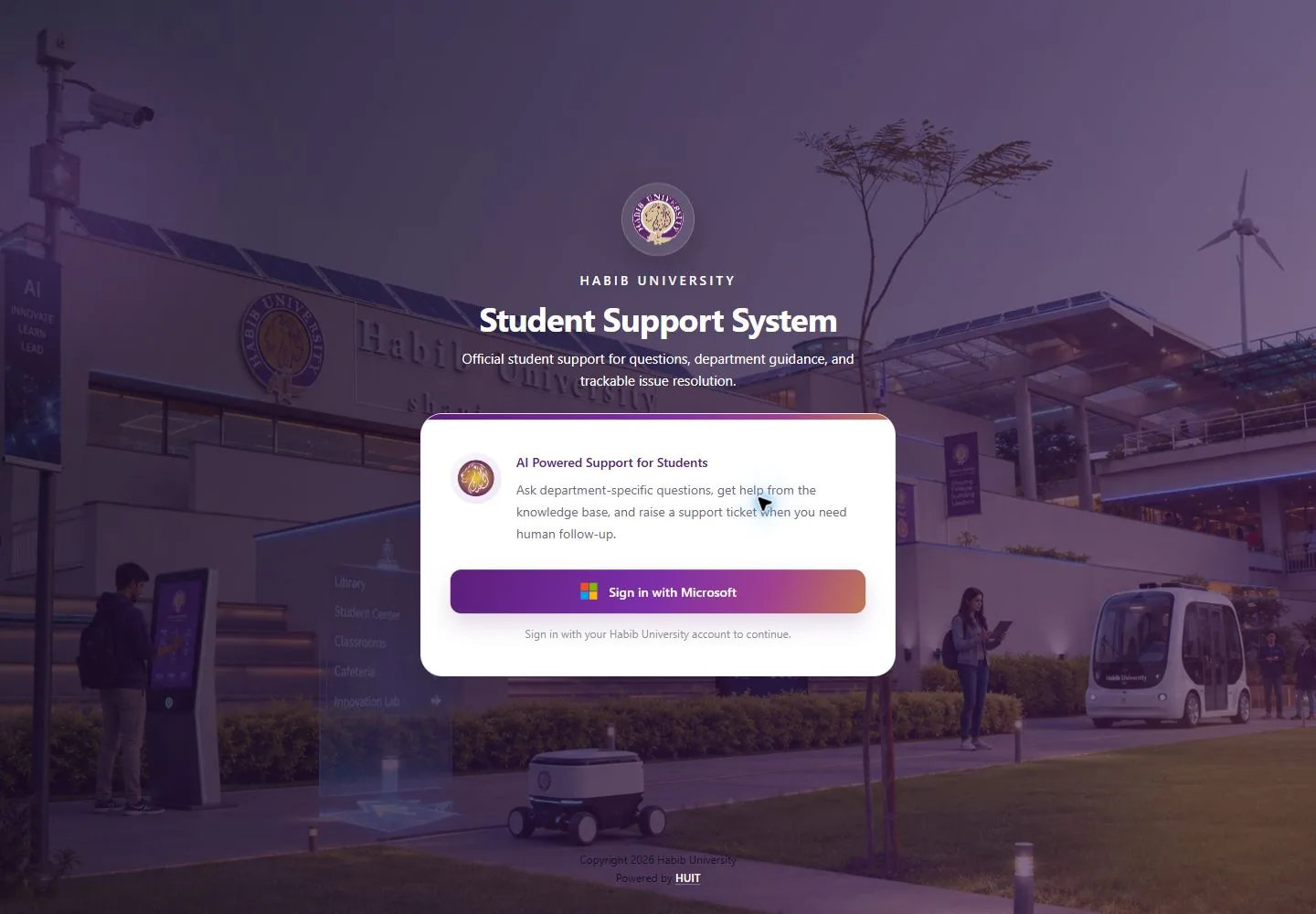
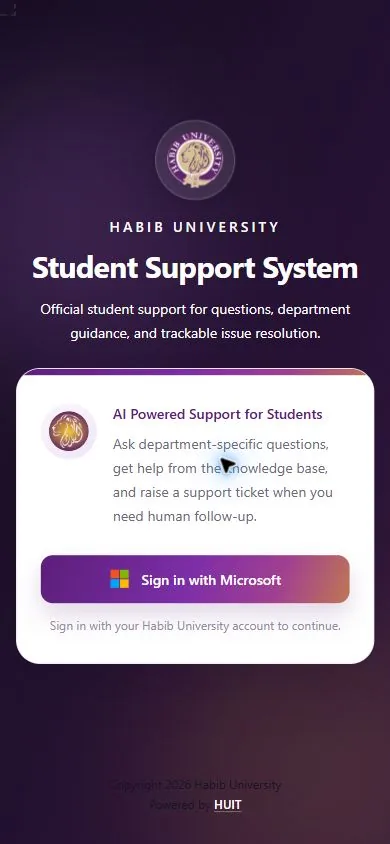
One button, one university account. The page states what the service is for before anyone signs in.
Step 02Choose a department
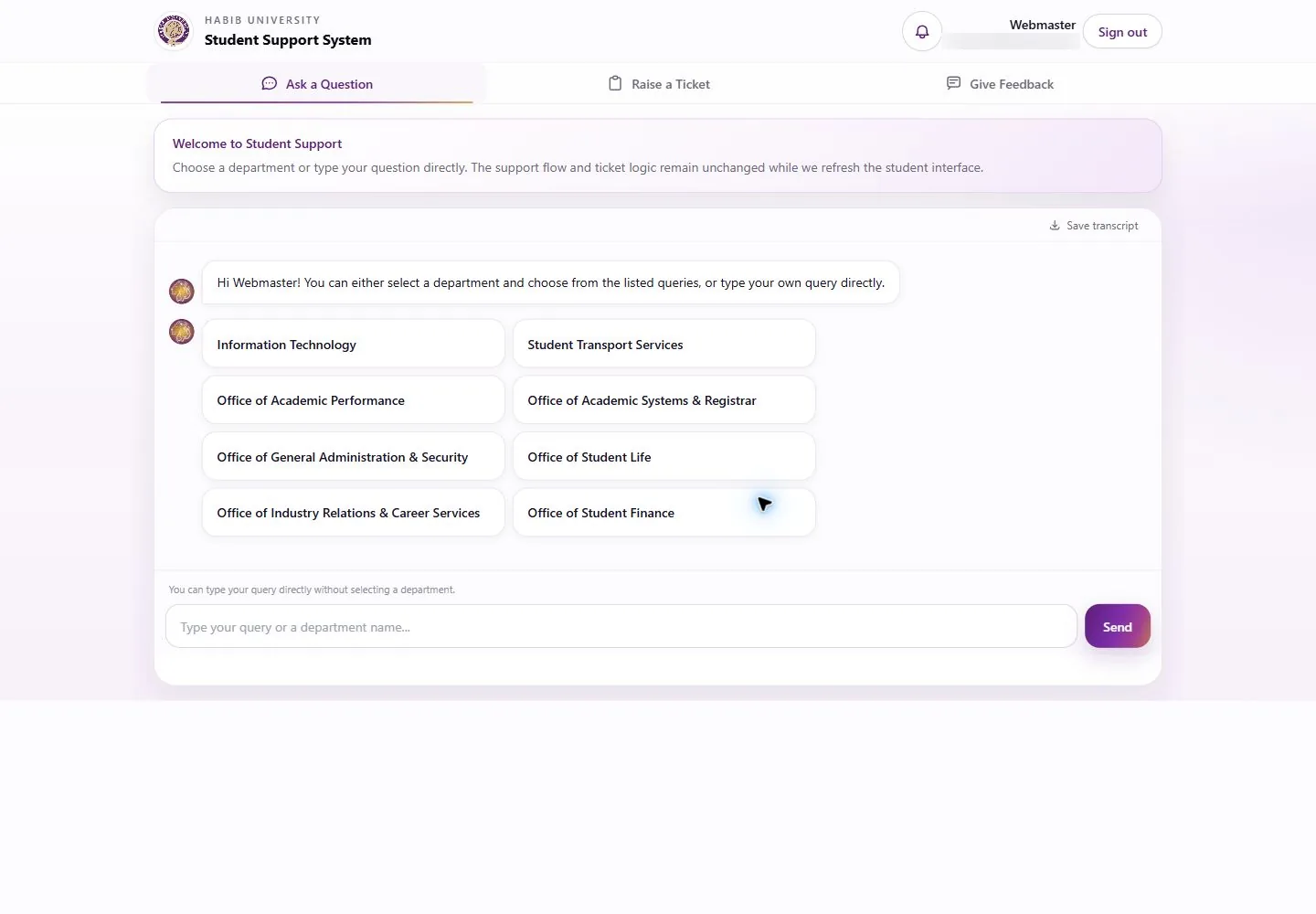
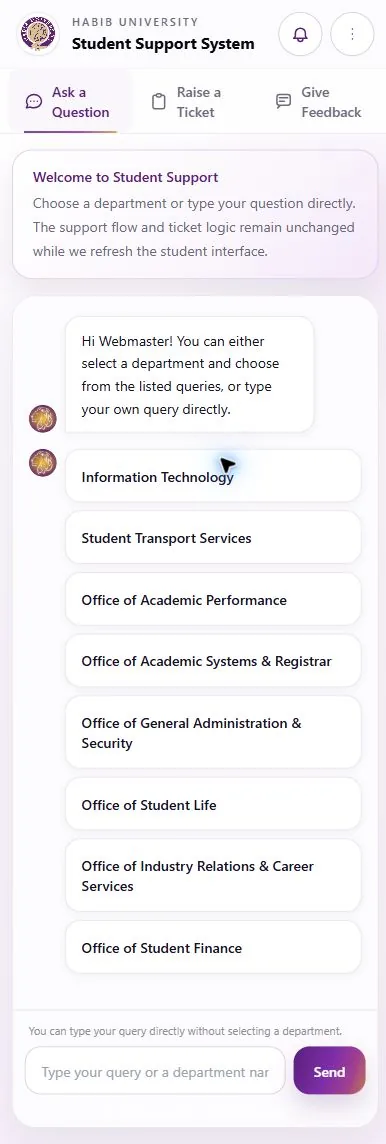
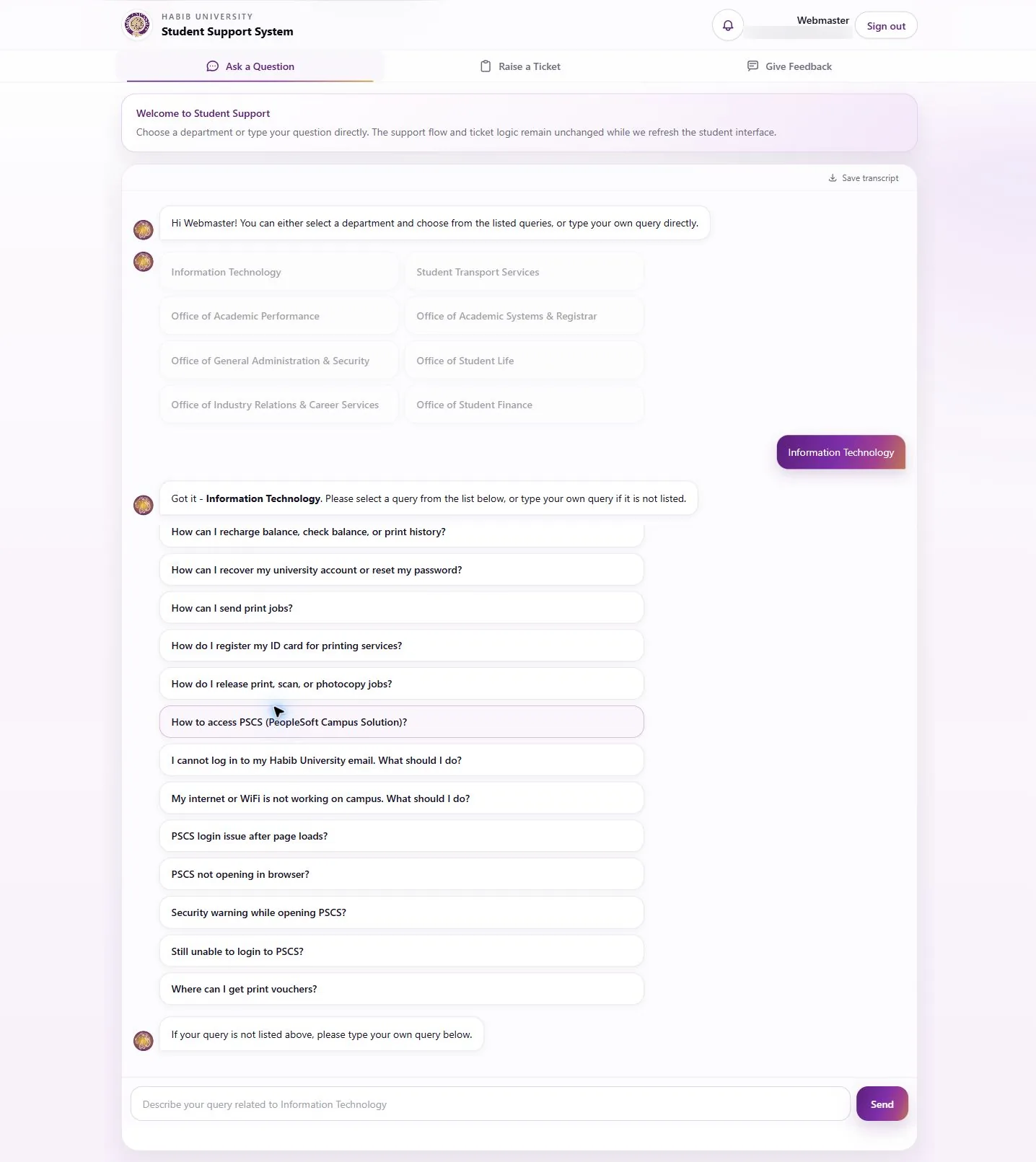
The welcome screen lists the eight departments as large tap targets. Students can also type straight away, and the chat can be saved as a transcript.
Step 03Pick a listed query
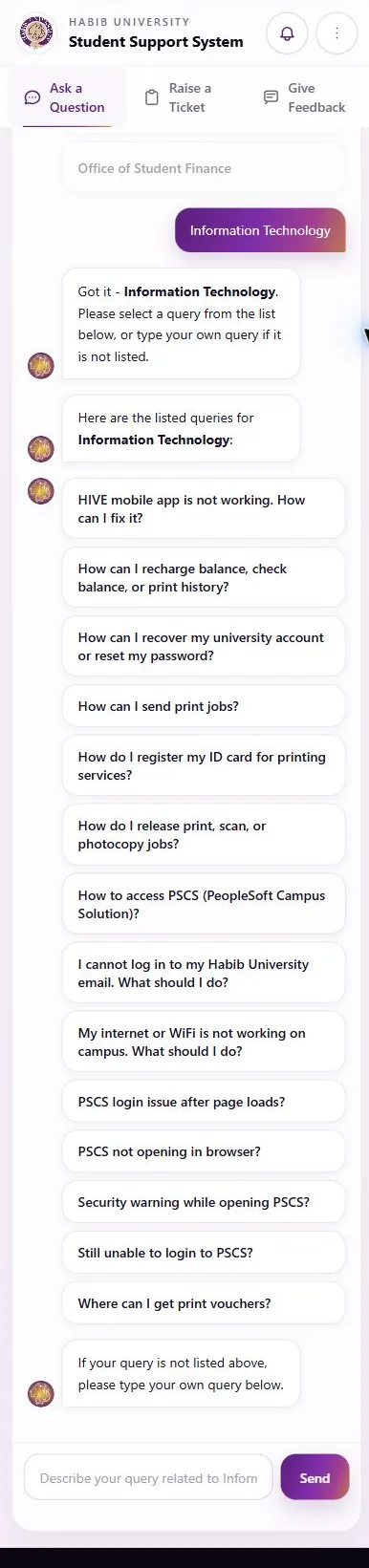
Choosing Information Technology confirms the choice, then lists the common queries for that office. If the student types their own, the system searches and ranks the knowledge base, suggests the best answer, and lets the student confirm it resolved the issue. If the query is ambiguous, it asks a follow-up and tries again.
Step 04Raise a ticket
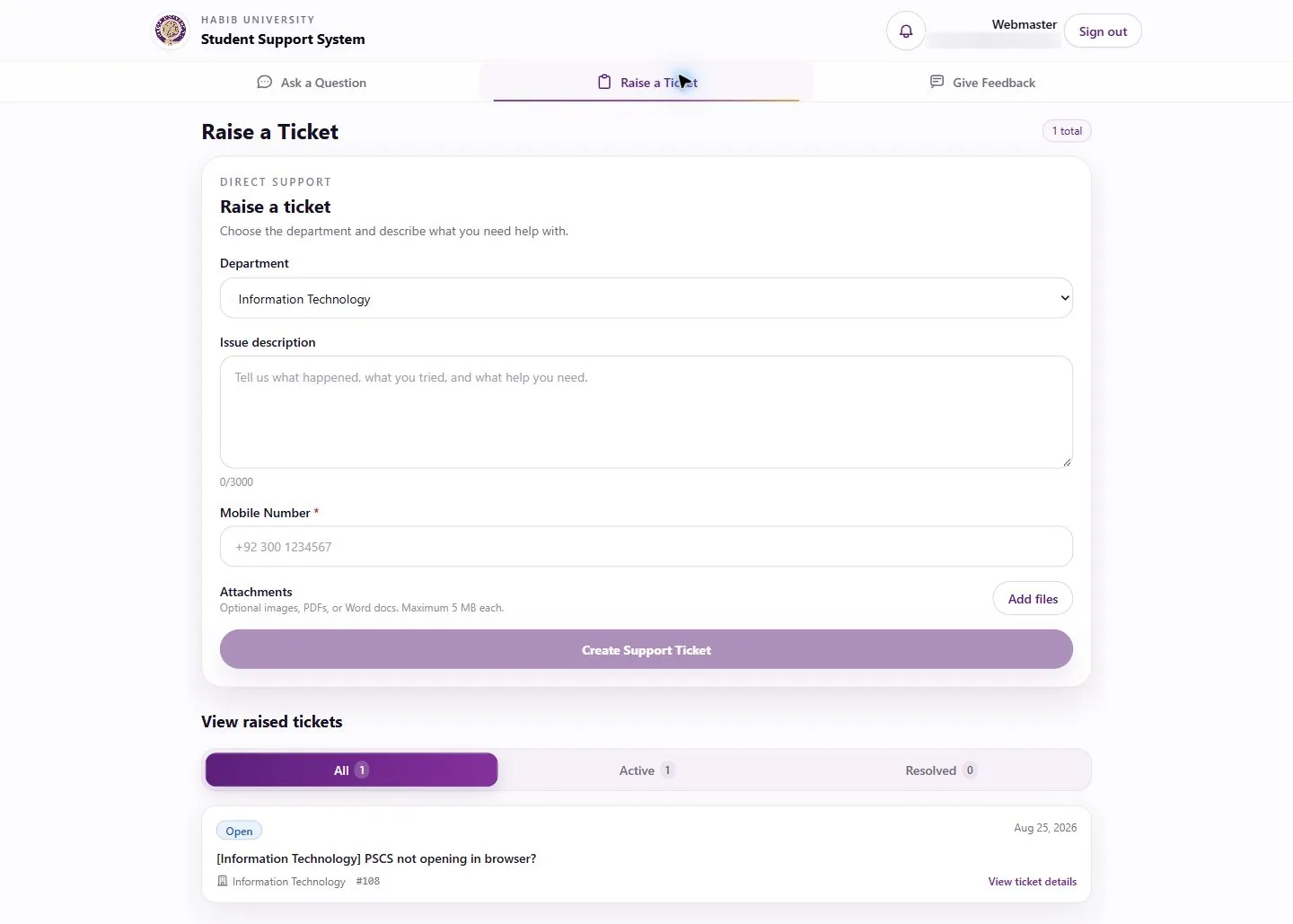
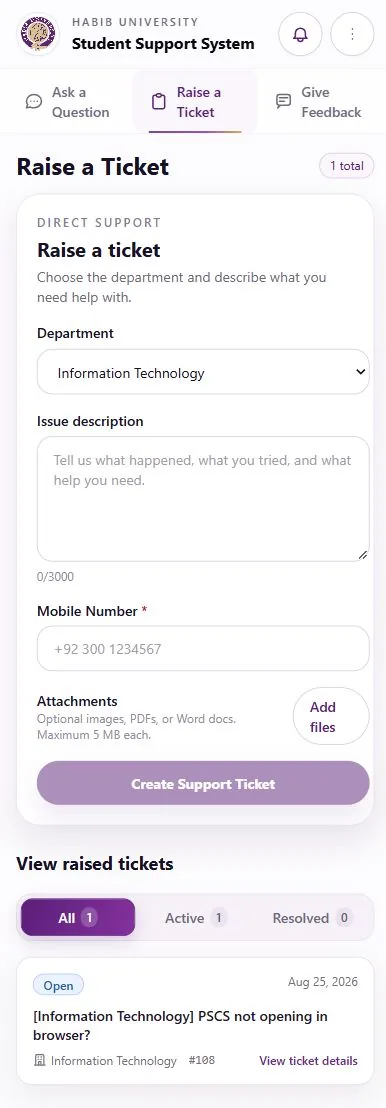
When the bot isn’t enough, the student chooses a department, describes the issue, adds a mobile number and optional files. Their raised tickets sit below, filtered by All, Active and Resolved.
Step 05Follow the ticket
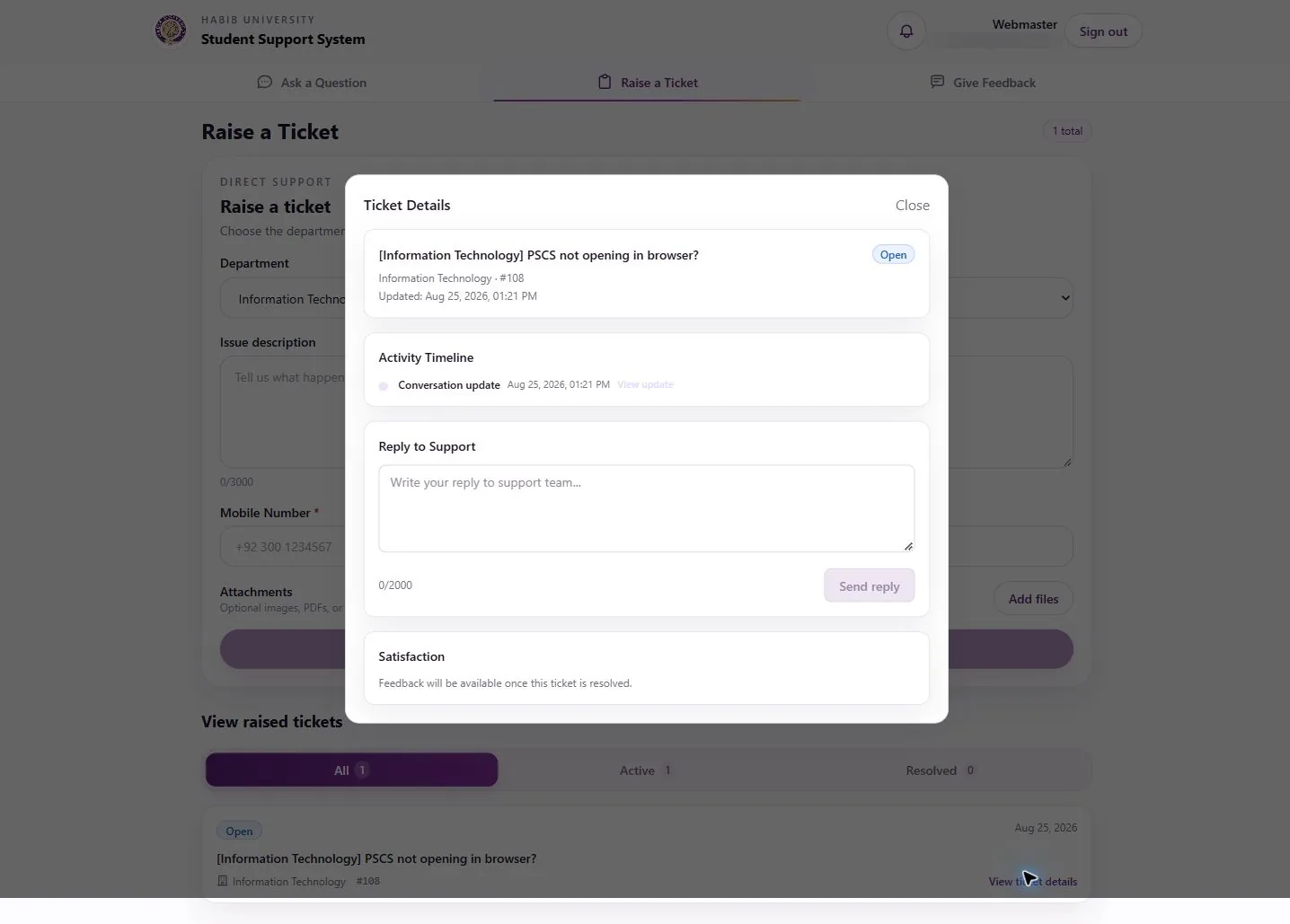
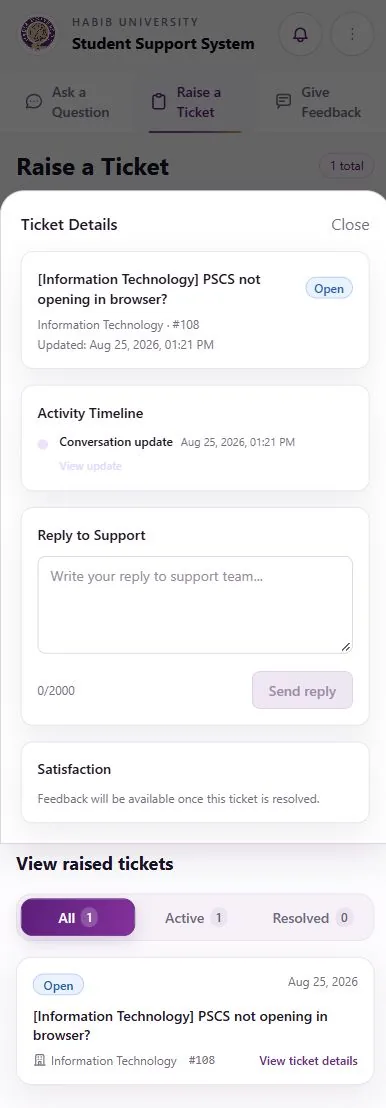
Ticket details open over the page with the status, an activity timeline, a reply box for the support team and, once resolved, a satisfaction rating.
Step 06Give feedback
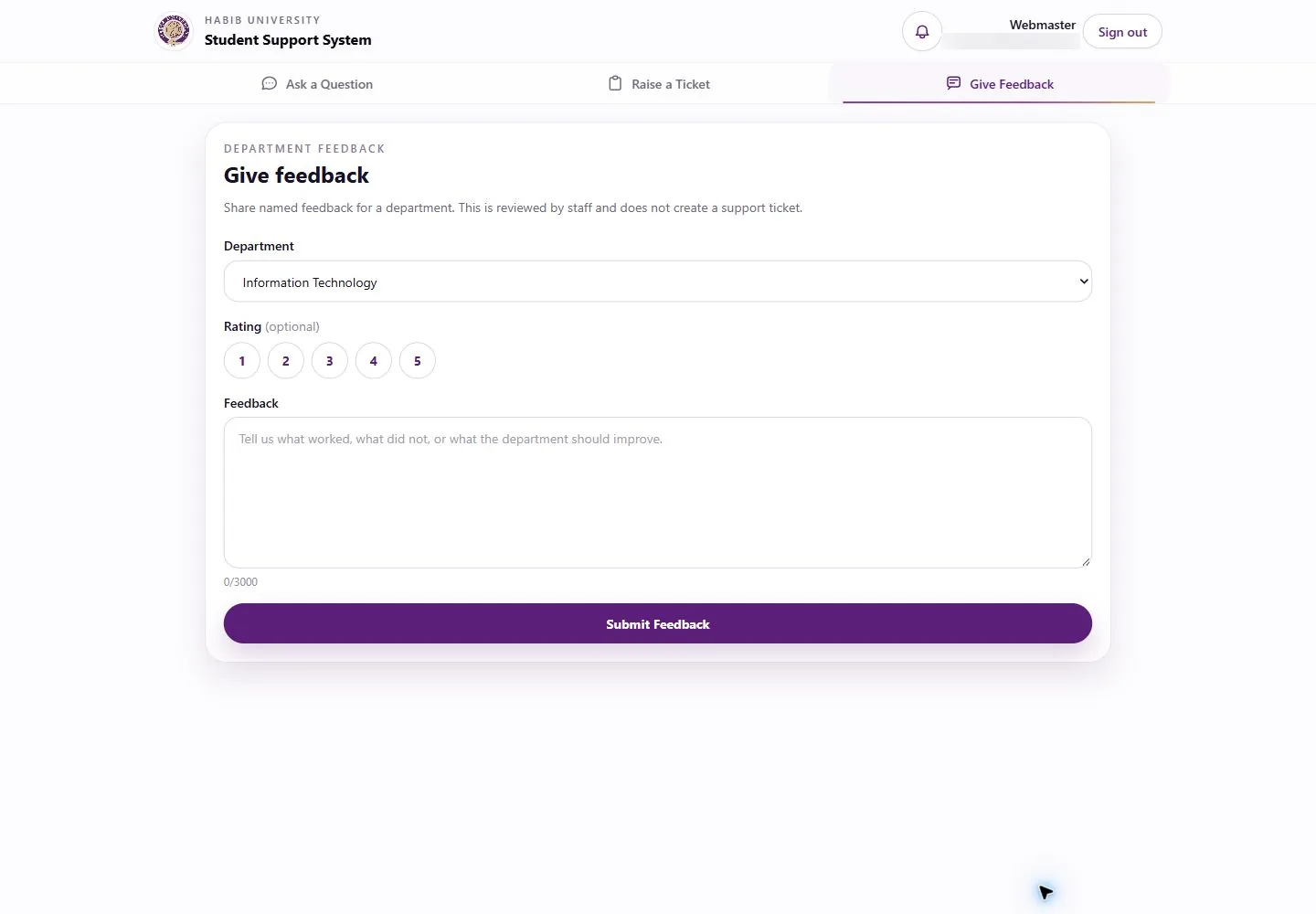
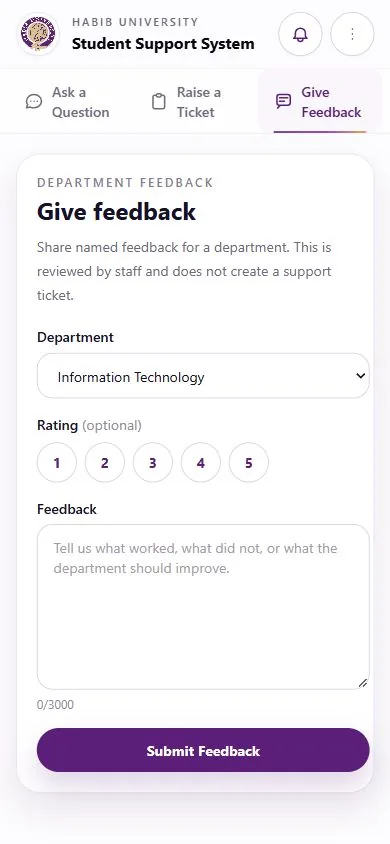
Named feedback for a department, with an optional 1 to 5 rating. It is reviewed by staff and deliberately does not create a ticket.
The admin desk, in the dark
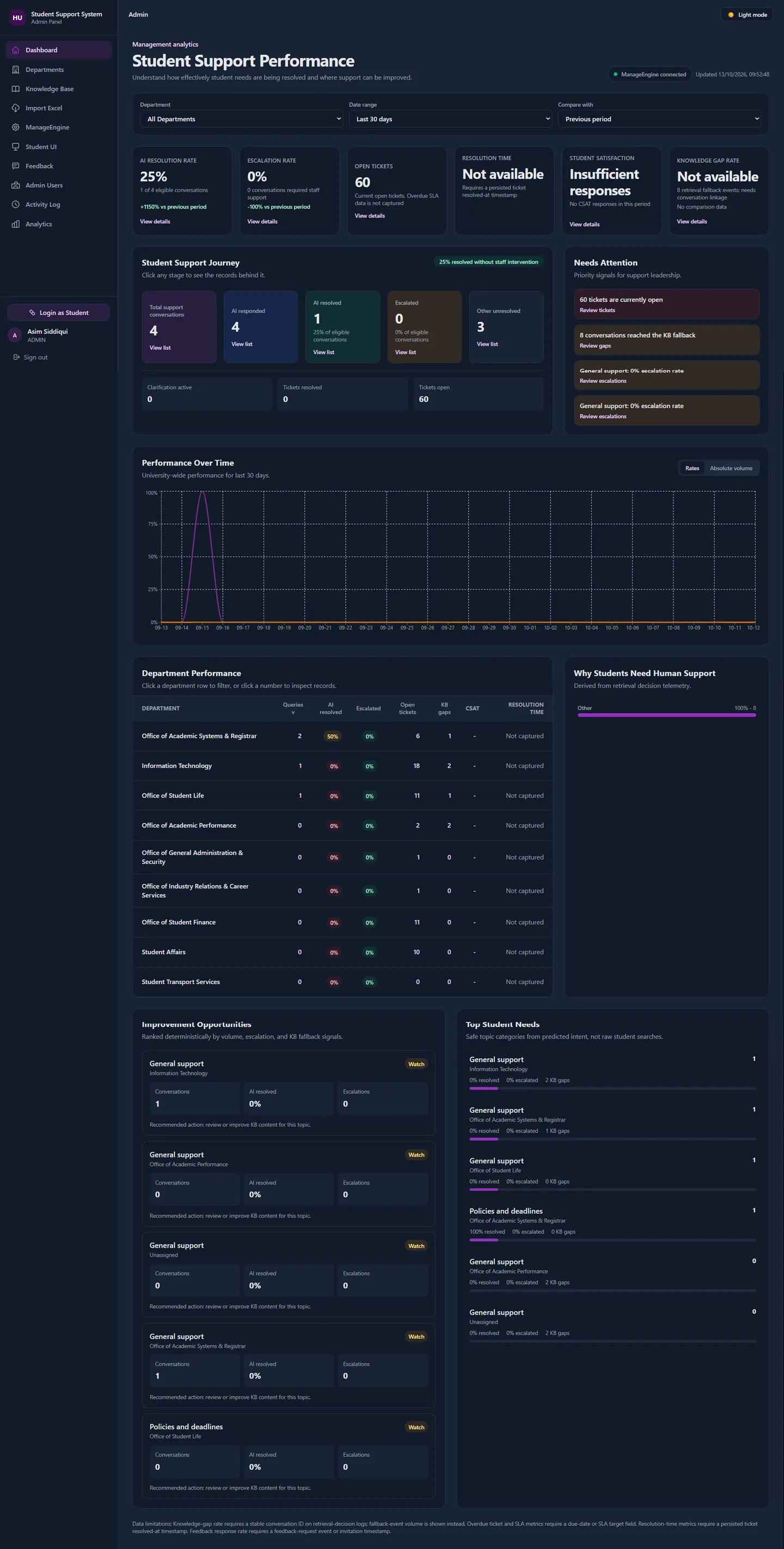
Student Support Performance opens with six measures, then follows a conversation through the funnel: total conversations, AI responded, AI resolved, escalated and unresolved. A Needs Attention list turns the signals into next actions, and department, topic and improvement tables show where to fix the knowledge base first.
Everything in the admin area
DashboardManagement analytics, with filters for department, date range and comparison period.
DepartmentsThe offices students can reach.
Knowledge BaseQueries and answers, grouped by department.
Import ExcelBulk-load knowledge from a spreadsheet.
ManageEngineThe ticketing connection and its status.
Student UIWhich student interface runs, and how it looks.
FeedbackWhat students say about each department.
Admin UsersWho can administer the portal.
Activity LogA record of what changed and who changed it.
AnalyticsDeeper reports behind the dashboard.